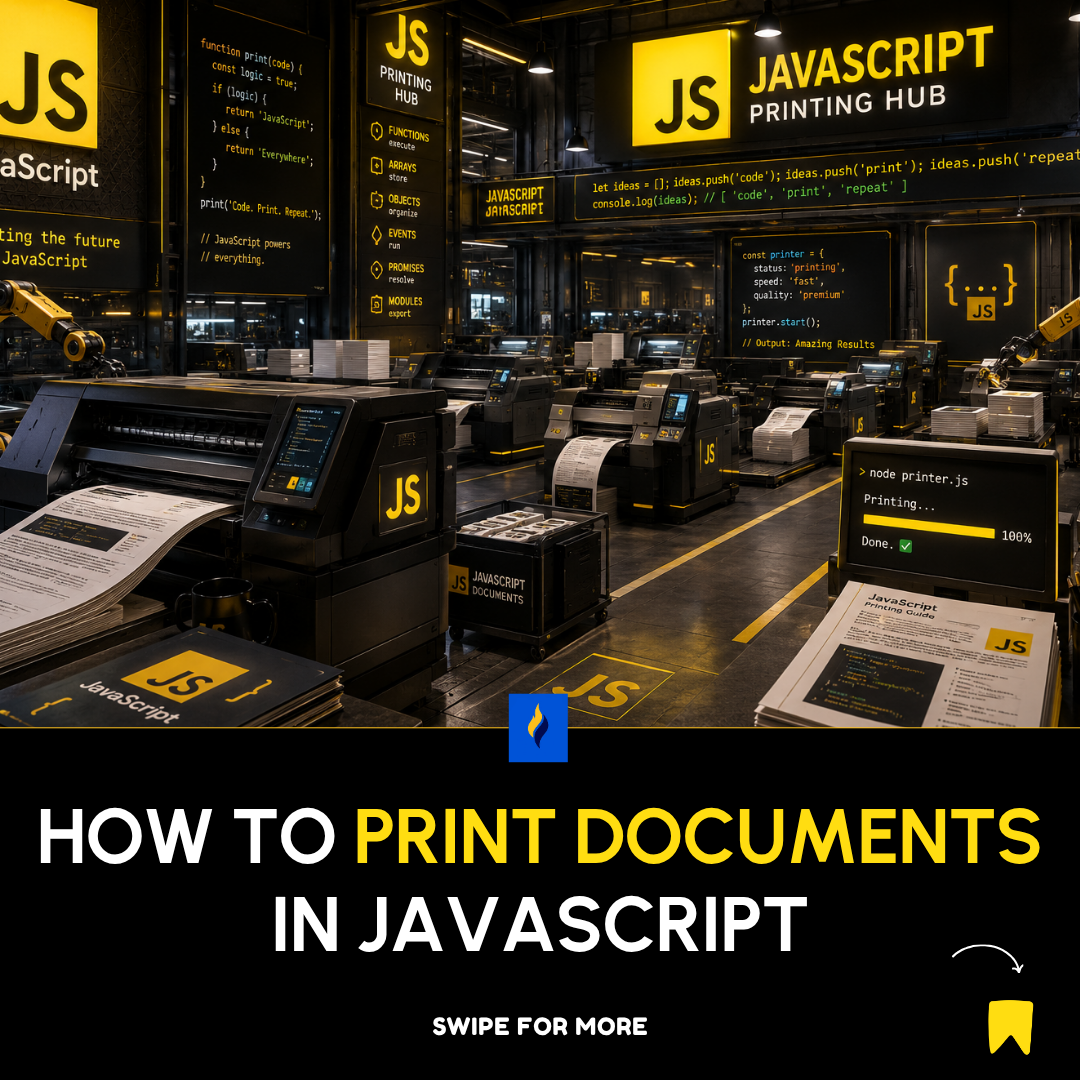
Printing a document in JavaScript usually means triggering the browser’s print dialog and controlling what gets printed (a page, a section, or dynamically generated content). JavaScript itself doesn’t “print” directly to printers—it delegates printing to the browser via the Print API.
Here’s a clear guide to doing it properly.
Get the Military Open Source Intelligence (OSINT) Guide
1. Basic Printing with window.print()
The simplest way to print a page:
function printPage() {
  window.print();
}
This opens the browser’s print dialog and prints the entire page.
You can trigger it with a button:
<button onclick="window.print()">Print Page</button>2. Printing Only a Specific Section
Often you don’t want the whole page printed—just a document, invoice, or report.
Step 1: Wrap the content
<div id="printArea">
  <h1>Invoice #123</h1>
  <p>Customer: John Doe</p>
  <p>Total: ₦50,000</p>
</div>

<button onclick="printSection()">Print Invoice</button>
Step 2: Use a temporary print window
function printSection() {
  const content = document.getElementById("printArea").innerHTML;

  const printWindow = window.open("", "", "width=800,height=600");

  printWindow.document.write(`
    <html>
      <head>
        <title>Print</title>
      </head>
      <body>
        ${content}
      </body>
    </html>
  `);

  printWindow.document.close();
  printWindow.print();
  printWindow.close();
}
3. Using CSS for Print Layout (Very Important)
To control how printed pages look, use @media print.
@media print {
  body {
    font-size: 12px;
    color: black;
  }

  .no-print {
    display: none;
  }

  #printArea {
    width: 100%;
  }
}
Example usage:
<button class="no-print" onclick="window.print()">Print</button>Anything with .no-print will be hidden when printing.
4. Printing Only a Div Without New Window (Cleaner Method)
Instead of opening a new window, temporarily replace page content:
function printDiv() {
  const originalContent = document.body.innerHTML;
  const printContent = document.getElementById("printArea").innerHTML;

  document.body.innerHTML = printContent;
  window.print();
  document.body.innerHTML = originalContent;
}
⚠️ Use carefully—this can reset JavaScript state on the page.
5. Printing Dynamically Generated Content
Example: generating a report before printing.
function printReport(data) {
  let html = `
    <h1>Sales Report</h1>
    <ul>
  `;

  data.forEach(item => {
    html += `<li>${item.name}: ₦${item.amount}</li>`;
  });

  html += "</ul>";

  const win = window.open("", "", "width=800,height=600");
  win.document.write(html);
  win.document.close();
  win.print();
}
6. Printing PDFs (Advanced Option)
If you want better control (recommended for invoices, receipts), generate a PDF first using libraries like:
- jsPDF
- pdf-lib
Example with jsPDF:
import jsPDF from "jspdf";

const doc = new jsPDF();
doc.text("Hello World", 10, 10);
doc.save("document.pdf");
Then the user prints the downloaded file.
Best Practices
- Always use
@media printfor layout control - Hide navigation bars, buttons, and ads during print
- Avoid opening too many popup windows
- Prefer PDF generation for complex documents
- Test across browsers (Chrome behaves best for printing)
Summary
window.print()→ simplest way to print everything- CSS
@media print→ controls layout - New window approach → prints specific sections
- PDF libraries → best for professional documents
About the Author